


Switching to a new Gmail account? TechnoRozen.com has your back with foolproof ways to transfer emails from your old Gmail to the new one without losing a single message. Whether consolidating accounts, starting fresh, or migrating for work, this process preserves your inbox, sent items, labels, and attachments.
Gmail’s native tools make it seamless, pulling data via POP/IMAP protocols. Note: As of January 2026, some POP features for external accounts evolve, but Gmail-to-Gmail transfers remain robust. Always enable 2-Step Verification and use app passwords for security. Expect imports to take hours to days for large inboxes (e.g., 10GB+). Back up first via Google Takeout.
TechnoRozen.com breaks down the top methods, from automatic imports to manual exports. Follow these for a hassle-free switch.
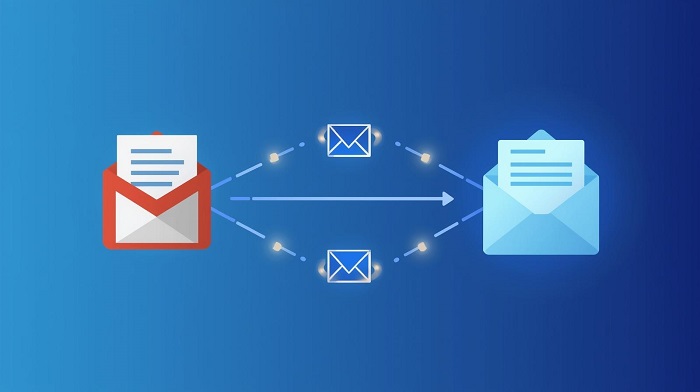
Table of Contents
Method 1: Gmail’s Built-in Import (Easiest for Full Transfer)
Gmail’s “Import mail and contacts” fetches everything automatically.
1. Log into your new Gmail > Gear icon > See all settings > Accounts and Import tab.
2. Under “Check mail from other accounts,” click Add a mail account.
3. Enter your old Gmail address > Next.
4. Select Import emails from my other account (POP3) > Next.
Input old Gmail password (or app password if 2FA enabled) > Add Account.
Emails appear under a labeled folder in the new account. Labels and folders may need manual recreation, but threads stay intact. Imports run periodically until complete.
Pro Tip: Enable “Leave a copy” in old account settings to keep originals.
Method 2: Google Takeout Export + Thunderbird Import (For Archives)
Perfect for one-time bulk exports.
Export from Old Gmail:
1. Visit takeout.google.com (old account logged in).
2. Deselect all > Check Mail > Next > Create export.
3. Download MBOX file(s) via emailed link.
Import to New Gmail via Thunderbird (Free Tool):
1. Download/install Thunderbird > Add both Gmail accounts (IMAP).
2. ImportExportTools NG add-on.
3. Right-click new account > ImportExportTools > Import MBOX file.
4. Select downloaded MBOX > Import. Syncs to new Gmail cloud.
This copies everything, including deleted items if selected. Time: Hours for 50GB+.
Method 3: Set Up Automatic Forwarding (Ongoing Emails)
Catch future mails without manual work.
In old Gmail > Settings > Forwarding and POP/IMAP > Add a forwarding address (enter new Gmail).
Verify via confirmation email.
Choose Forward a copy > Keep in Inbox or Archive.
Test send.
Disable after full import to avoid duplicates.
Method 4: Manual Drag-and-Drop or Forwarding (Small Batches)
For selective emails.
Drag-and-Drop:
1. Open both inboxes in browser tabs (IMAP folders).
2. Select emails > Drag to new inbox tab.
Forward Individually:
Open email > Three dots > Forward > New address > Send. Quick for 10-20 messages.
Method 5: Third-Party Tools (Automated Power)
For speed and folders:
VaultMe: Connect source/destination > Auto-migrates emails/folders. Cloud-based, no size limits.
Clean Email: Bulk transfer with cleaning.
Free trials available; paid for large migrations.
Comparison of Methods
| Method | Best For | Time for 10K Emails | Preserves Labels? | Cost |
|---|---|---|---|---|
| Built-in Import | Full auto-transfer | 1-3 days | Partial | Free |
| Takeout + Thunderbird | Archival backups | 2-24 hours | Yes | Free |
| Forwarding | New emails only | Instant | N/A | Free |
| Manual Drag | Few emails | Minutes | No | Free |
| Third-Party (VaultMe) | Large/pro folders | 1-2 hours | Yes | Paid |
Pre-Transfer Checklist
Verify storage: New Gmail needs space (15GB free base).
Enable IMAP/POP in old account: Settings > Forwarding and POP/IMAP > Enable POP for all mail.
App Passwords: If 2FA on, generate at myaccount.google.com > Security > App passwords.
Contacts/Calendar: Import separately via takeout.google.com.
Test: Transfer 5 sample emails first.
Post-Transfer Cleanup
Update linked apps/services (banking, social).
Set new as default sender.
Archive/delete old inbox.
Monitor for duplicates; use Gmail filters.
Troubleshooting Common Issues
Import Stuck? Check password/2FA; retry or use Takeout.
POP Disabled 2026? Fall back to IMAP/Takeout—Gmail internal transfers unaffected.
Large Files Slow? Split Takeout exports.
Errors? Clear cache; use incognito.
TechnoRozen.com tip: For businesses, Google Workspace migration tools handle teams.
Transferring emails secures your digital life in one hub. With these steps, your old Gmail’s history lives on seamlessly. Stay tuned to TechnoRozen.com for more tech guides!