


Whether you’re sending a quick reply or a formal business email, your email signature is one of the most important yet overlooked elements of professional communication. A well-crafted signature instantly tells the recipient who you are, how to reach you, and what you represent — all without you having to type it out every single time.
Microsoft Outlook remains one of the most widely used email clients in the world, both in corporate environments and for personal use. However, with Microsoft rolling out the New Outlook experience alongside the Classic (legacy) Outlook, many users find themselves confused about where the signature settings have moved — or how to set one up at all.
This guide covers everything you need to know about adding, editing, and how to change signature in outlook in both versions of Outlook, including Outlook on the web. By the end, you’ll have a polished, professional signature ready to go.
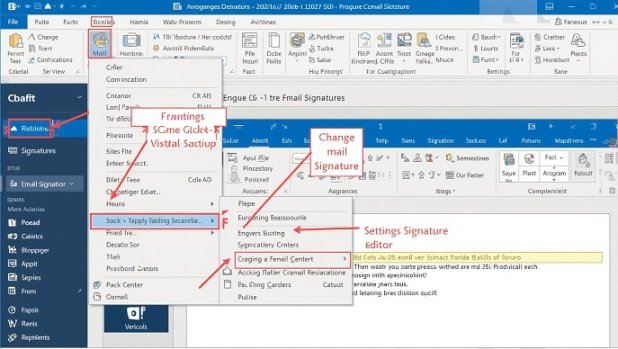
Table of Contents
Why Your Email Signature Matters
Before diving into the how-to, it’s worth understanding why a signature is worth setting up properly.
A professional email signature serves multiple purposes:
- Credibility: It signals that you’re a real, accountable person or organization.
- Convenience: Recipients can instantly find your phone number, job title, website, or social media — without having to ask.
- Branding: For businesses, a consistent signature reinforces brand identity across every communication.
- Legal compliance: Some industries require a legal disclaimer or privacy notice at the bottom of every email.
A blank signature — or worse, no signature at all — can make emails feel informal, incomplete, or even suspicious in professional contexts.
How to Add a Signature in New Outlook (2024 and Later)
Microsoft has been rolling out the New Outlook experience as a modern redesign, particularly for Windows 11 users and Microsoft 365 subscribers. The interface looks cleaner and somewhat different from the Classic version, and the steps to add a signature have changed accordingly.
Step 1: Open Outlook Settings
In New Outlook, click the gear icon (⚙️) in the top-right corner of the window. This opens the Settings panel. You can also access it from the menu bar.
Step 2: Navigate to Signatures
In the Settings panel, look for the Mail section in the left sidebar. Click on it, then scroll down to find Compose and reply. Under this section, you’ll see the Email signature option.
Alternatively, you can use the search bar within Settings and type “signature” to jump directly to the right section.
Step 3: Create a New Signature
Click + New signature (or the Add button, depending on your version). A text editor box will appear where you can type and format your signature.
You’ll be able to:
- Type your name, title, company, phone number, and other details
- Apply formatting such as bold, italic, font size, and color
- Insert hyperlinks (for your website or LinkedIn profile)
- Add an image or company logo by clicking the image icon in the toolbar
Step 4: Set Default Signature Options
Once your signature is created, you’ll see two dropdown menus:
- For new messages — Choose the signature that automatically appears when you compose a fresh email.
- For replies/forwards — Choose whether a signature appears when replying to or forwarding emails (many professionals prefer to leave this blank or use a shorter version to avoid clutter in long threads).
Step 5: Save Your Signature
Click Save to apply your settings. Your signature will now automatically appear in new emails based on the defaults you set.
How to Add a Signature in Classic Outlook (Desktop App)
The Classic Outlook desktop app — still widely used across businesses running older versions of Microsoft Office or those who haven’t yet migrated to New Outlook — has a slightly different process.
Step 1: Open the Signature Manager
Open Outlook and click on File in the top-left menu. Then go to Options → Mail → Signatures…
Alternatively, when composing a new email, go to the Insert tab in the ribbon and click Signature → Signatures…
Either path opens the Signatures and Stationery dialog box.
Step 2: Create a New Signature
In the Email Signature tab, click New under the “Select signature to edit” section. You’ll be prompted to give your signature a name — this is just for your own reference (e.g., “Professional,” “Personal,” or “Short Version”).
Step 3: Edit Your Signature
In the large text editor at the bottom of the dialog box, type out your signature. You can use the formatting toolbar above the text box to:
- Change the font, size, and color
- Bold or italicize text
- Add a horizontal line to visually separate the signature from the email body
- Insert an image (such as your headshot or company logo) using the picture icon
- Add hyperlinks to websites or social profiles
Pro tip: Keep your signature clean and scannable. A good rule of thumb is no more than 4–5 lines of essential information. Avoid adding too many social icons, banners, or animated GIFs — they can look unprofessional and may not render correctly on all devices.
Step 4: Assign Your Default Signature
Under the Choose default signature section (on the right side of the dialog box), use the dropdowns to select:
- E-mail account: Which account this signature applies to (if you have multiple accounts linked)
- New messages: The signature to use for fresh emails
- Replies/forwards: The signature for replies and forwarded emails
Step 5: Click OK
Hit OK to save your signature and close the dialog. You’re done — your signature will now appear automatically in new emails.
How to Add a Signature in Outlook on the Web (OWA)
If you access Outlook through a browser at outlook.live.com or outlook.office.com, here’s how to add your signature:
- Click the gear icon (Settings) in the top-right corner.
- At the bottom of the Quick Settings panel, click View all Outlook settings.
- Go to Mail → Compose and reply.
- Scroll to the Email signature section.
- Type your signature in the text box using the formatting toolbar provided.
- Check or uncheck the options to automatically include your signature on new messages and/or replies.
- Click Save.
The Outlook web version supports basic rich-text formatting, image insertion, and hyperlinks — similar to the desktop versions.
Tips for a Great Email Signature
Now that you know how to add a signature, here are some best practices to make it truly effective:
Keep It Concise
Most readers spend less than three seconds glancing at an email signature. Stick to the essentials: your name, job title, company, phone number, and one or two links. Avoid listing every single social media account you have.
Use a Professional Font
Your signature should match the tone of your emails. Use standard, readable fonts like Calibri, Georgia, or Arial. Avoid decorative or cursive fonts that may not render properly on all email clients.
Include a CTA When Appropriate
If you’re in sales, marketing, or customer service, consider adding a subtle call-to-action link in your signature — such as “Book a free call” or “Read our latest blog post.” This turns every email you send into a low-effort marketing touchpoint.
Be Careful with Images
While a company logo can add credibility, large images may be blocked by email clients or cause your emails to land in spam folders. If you use an image, keep it small (under 100KB) and always host it online rather than embedding it as an attachment.
Mobile Responsiveness
Many people read email on mobile devices. Test your signature by sending a test email to yourself and checking it on your phone. Make sure it doesn’t look cluttered or broken on a small screen.
Legal Disclaimers
If you work in law, finance, healthcare, or another regulated industry, your IT or compliance team may require a legal disclaimer at the bottom of your signature. Make sure you follow your organization’s guidelines before going live.
Managing Multiple Signatures
Both New and Classic Outlook allow you to create multiple signatures. This is useful if you:
- Manage multiple email accounts
- Want a detailed signature for new emails and a shorter one for replies
- Need different signatures for different roles or contexts
To switch signatures manually while composing an email, click on Insert → Signature in Classic Outlook or the signature icon in New Outlook, and choose the one you want from the dropdown.
Troubleshooting Common Issues
Signature not showing up? Make sure you’ve set it as the default for new messages in the signature settings. If it still doesn’t appear, try restarting Outlook.
Images in signature not displaying? The recipient’s email client may be blocking external images. Consider hosting your image on a reliable server and linking it directly, or avoid images altogether.
Signature appearing with strange formatting? This can happen when pasting text from Word or another source. Always paste as plain text first (Ctrl+Shift+V), then apply formatting directly in the signature editor.
Different signature on mobile? The Outlook mobile app has its own separate signature settings. Open the Outlook app on your phone, go to Settings → your account → Signature, and update it there.
Final Thoughts
Adding a signature in Outlook — whether you’re using the new modern version, the classic desktop app, or the web interface — takes only a few minutes but makes a lasting impression. A clean, professional signature is one of those small details that quietly communicates competence and credibility in every email you send.
Take the time to craft yours thoughtfully: include the right information, keep it visually clean, and test it across devices. Once it’s set up, it works silently in the background, representing you every single time you hit Send.
Now go open Outlook and make that signature work for you.