


Digital payments have quietly rewritten how we handle money. From splitting dinner bills to paying utility bills at midnight, apps like Google Pay have made financial transactions almost frictionless. But before you can send or receive a single rupee — or dollar — you need to complete one foundational step: linking your bank account. If you have never done it before, or if you have switched banks and need to start fresh, this guide walks you through the entire process, clearly and without jargon.
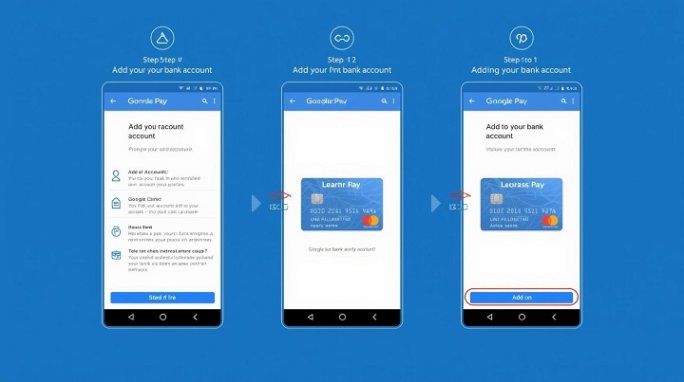
Table of Contents
Why Link a Bank Account to Google Pay?
Google Pay operates on the Unified Payments Interface (UPI) framework in India, and connects directly to bank accounts in other regions too. Unlike a digital wallet that requires you to pre-load money, Google Pay draws funds directly from your bank at the moment of each transaction. This means no float, no top-up hassle, and no money sitting idle in an intermediate account.
Linking your bank account unlocks the full suite of Google Pay features: peer-to-peer transfers, merchant payments, bill payments, mobile recharges, and even investment products on the platform. It is, in short, the key that starts the engine.
“Your bank account is not just a funding source — it is your financial identity on the platform.”
What You Will Need Before You Begin
A little preparation goes a long way. Before opening the app, make sure you have the following ready:
1. A smartphone with an active internet connection (Android or iOS).
2. Google Pay installed — download it free from the Play Store or App Store.
3. A mobile number that is registered with your bank.
4. Your debit card details — card number, expiry date, and CVV — for verification.
5. A bank account at a UPI-enabled or Google Pay-supported bank.
The mobile number requirement is critical. Google Pay uses it to identify your bank account automatically. If the SIM card in your phone does not match the number registered with your bank, the linking process will fail.
Step-by-Step: Adding Your Bank Account (India / UPI)
Step 1 — Install and Set Up Google Pay
If you are setting up Google Pay for the first time, open the app and sign in with your Google account. Grant the required permissions — phone, contacts, and SMS — which the app needs to send a verification SMS and auto-read OTPs. Choose your preferred language and set a Google Pay PIN or use biometric authentication.
Step 2 — Navigate to the Bank Account Section
Step 3 — Select Your Bank
Step 4 — Verify and Link the Account
Adding a Bank Account Outside India (US, EU, etc.)
For users in the United States, the process differs slightly. Google Pay (which has been integrated into Google Wallet in some regions) allows you to add a bank account for direct transfers via the “Add to Wallet” or “Link bank account” option inside the app. You will typically need to provide your routing number and account number. Google may verify the account by making two small micro-deposits, which you confirm within 1–3 business days.
In the European Union, Google Pay primarily connects to bank accounts through linked debit or credit cards issued by your bank, rather than direct account linking via account number.
Google Pay or any bank will never ask for your UPI PIN, OTP, or CVV via call, chat, or SMS. Never share these with anyone. Always set a strong UPI PIN distinct from your phone lock PIN. Enable two-factor authentication on your Google account for an added layer of protection.
How to Add a Second Bank Account
Google Pay allows you to link multiple bank accounts — handy if you maintain accounts at different banks for different purposes. Simply repeat the same process: go to Profile → Bank account → Add bank account, and select the second bank. You can set any one of your linked accounts as the default for payments, and switch between them for individual transactions if needed.
Troubleshooting Common Issues
Issue Bank not found in the list — Your bank may not yet support UPI. Contact your bank’s customer service to confirm UPI availability.
Issue SMS verification failing — Ensure the SIM with your bank-registered number is inserted in your phone and mobile data is active on that SIM specifically.
Issue UPI PIN setup error — Double-check that you are entering the correct debit card details. Cards must not be expired. Try again with mobile data enabled.
Issue Account already linked to another UPI app — An account can be linked to multiple UPI apps simultaneously. Having it on PhonePe or Paytm does not prevent you from adding it to Google Pay as well.
Final Thoughts
Adding a bank account to Google Pay is a five-minute task that opens up a genuinely powerful payment ecosystem. The process is designed to be user-friendly, and the UPI infrastructure it rides on is among the most robust and secure real-time payment systems in the world. Once your account is linked and your UPI PIN is set, you are ready to pay anyone, anywhere, at any time — with nothing but your phone.
Take a moment to explore the app after setup: scheduled payments, transaction history, cashback offers, and linked bill payments are all worth knowing about. The more familiar you are with the platform, the more value you will extract from it every day.