

If you work in hospitality procurement, purchasing, or accounting, chances are you’ve come across BirchStreet Systems — the cloud-based procure-to-pay platform used by hotels, resorts, and restaurant groups around the world. Whether you’re a new employee trying to log in for the first time or a seasoned user dealing with an access hiccup, this guide walks you through everything you need to know about the Birch Street login process.
Table of Contents
What Is BirchStreet Systems?
BirchStreet Systems is a procurement and supply chain management platform built specifically for the hospitality industry. Hotels and hospitality groups use it to manage purchasing, inventory, accounts payable, budgeting, and vendor relationships — all from a single cloud-based dashboard. Because so many properties rely on it daily, knowing how to log in smoothly (and troubleshoot when things go sideways) is a practical skill for procurement teams, department heads, and finance staff alike.
How to Access the Birch Street Login Page
BirchStreet doesn’t use a single universal login URL for every customer. Instead, access typically happens through one of these routes:
- Property-specific login link — Many hotel groups are assigned a unique subscriber or business unit ID, which routes to a dedicated login page (often something like
appXX.birchstreetsystems.com). This link is usually provided by your property’s procurement or IT department. - Single Sign-On (SSO) — Larger hospitality groups often integrate BirchStreet with their corporate identity provider, allowing employees to log in using their existing company credentials rather than a separate BirchStreet username and password.
- Direct marketplace login — Some users access BirchStreet’s marketplace or ordering module through a dedicated portal link shared internally by their organization.
If you’re unsure which login route applies to you, the fastest way to find out is to check with your property’s purchasing manager or IT help desk — they’ll have the exact URL and login method configured for your organization.
Step-by-Step: Logging Into BirchStreet
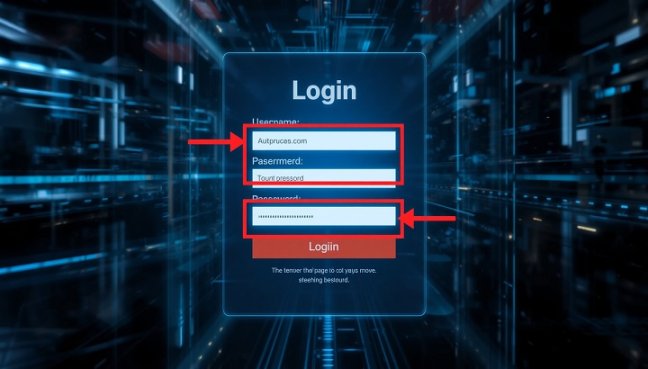
- Open the login link provided by your employer (bookmark it for future use).
- Enter your assigned username or email address.
- Enter your password. If your company uses SSO, you may be redirected to your organization’s identity provider instead.
- Complete any multi-factor authentication (MFA) prompt, if enabled.
- Once verified, you’ll land on your BirchStreet dashboard, where you can access purchasing, receiving, inventory, and reporting modules depending on your assigned permissions.
Common Login Issues and How to Fix Them
“Invalid username or password” Double-check for typos, caps lock, or extra spaces. If you’re confident your credentials are correct, your account may have been reset or deactivated — contact your internal admin.
Redirect loops or blank login screens This is often a browser issue. Clear your cache and cookies, try an incognito/private window, or switch browsers. BirchStreet’s platform performs best on current versions of Chrome or Edge.
Account locked after failed attempts Most organizations lock accounts after a set number of failed login tries as a security measure. Reach out to your BirchStreet administrator to have it unlocked rather than continuing to guess your password.
SSO login not working If your company uses single sign-on, login issues are often tied to your corporate account (expired password, MFA app issues) rather than BirchStreet itself. Start with your company’s IT help desk.
Forgotten password Use the “Forgot Password” link on your property’s login page if available. If there isn’t one, your BirchStreet administrator will need to trigger a reset on their end, since many hospitality groups manage credentials centrally.
Tips for a Smoother Login Experience
- Bookmark your property-specific URL. Since BirchStreet doesn’t use one universal login address, saving your correct link avoids confusion.
- Use a password manager. It reduces the risk of lockouts from mistyped credentials and keeps your login secure.
- Keep your browser updated. Outdated browsers are one of the most common causes of display and login errors on cloud procurement platforms.
- Know your escalation path. If login problems persist, know whether your first call should be your property’s procurement admin or your corporate IT/help desk — this varies by organization.
Why Login Access Matters More Than You’d Think
In most industries, a login screen is just a formality standing between you and your inbox. In hospitality procurement, it’s a bit more significant. BirchStreet isn’t a side tool — it’s often the system of record for purchase orders, receiving logs, vendor invoices, and budget tracking across an entire property or portfolio of properties. When someone can’t log in, it’s not just an inconvenience; it can delay a food and beverage order, hold up an invoice approval, or stall month-end reporting. That’s part of why getting familiar with the login process — and knowing exactly who to call when it breaks — is worth a few minutes of any new team member’s onboarding.
This is also why larger hotel groups tend to standardize how staff access the platform, rather than leaving it up to each employee to figure out. Centralized login management through SSO, in particular, exists precisely because procurement systems like BirchStreet touch financial data, and organizations want a single, auditable point of control over who can get in.
Mobile and Remote Access Considerations
Procurement and purchasing staff aren’t always sitting at a desktop. Many BirchStreet users — especially department heads placing orders or approving requisitions — need to log in from a tablet or phone while walking the property, checking inventory in a storeroom, or working from home. A few things to keep in mind for mobile or remote login:
- Use a stable, secure connection. Public Wi-Fi at hotels or coffee shops can sometimes interfere with session tokens or SSO redirects, leading to login errors that have nothing to do with your BirchStreet credentials.
- Check for a dedicated mobile view. Some properties configure a mobile-optimized login page separate from the desktop version. If a desktop link looks broken or cramped on your phone, ask your admin whether a mobile-specific URL exists.
- Session timeouts are normal. Cloud procurement platforms typically log users out after a period of inactivity for security reasons. If you’re logged out mid-task, it’s usually not an error — just log back in, and save your work frequently so nothing is lost.
Security Best Practices for BirchStreet Users
Because BirchStreet handles purchasing and financial workflows, treating your login credentials with the same care you’d give to a banking app is a reasonable standard. A few habits worth building:
- Never share your login with coworkers, even temporarily. Shared credentials make it impossible to track who actually approved a purchase order or requisition, which matters both for accountability and for audits.
- Report suspicious activity immediately. If you notice purchase orders or approvals you didn’t make, alert your administrator right away rather than assuming it’s a system glitch.
- Log out on shared devices. If you’re using a shared property computer — common in busy purchasing or receiving offices — always log out fully rather than just closing the browser tab.
- Update your password periodically, even if your organization doesn’t strictly enforce it, and avoid reusing passwords from personal accounts.
- Enable MFA if it’s offered. Multi-factor authentication adds a meaningful layer of protection against unauthorized access, especially for accounts with purchasing or approval permissions.
Who to Contact When Login Support Is Needed
Because BirchStreet is typically deployed and configured by each hospitality organization individually, there’s no single “one help desk fits all” answer here — your first point of contact depends entirely on how your company has set things up. Generally, it breaks down like this:
- Property-level procurement admin — usually the right first call for password resets, new account setup, or permission changes specific to your location.
- Corporate IT or help desk — the better option if you’re using SSO and the issue seems tied to your broader company credentials rather than BirchStreet itself.
- BirchStreet Systems support — typically engaged by your organization’s admin team rather than individual end users, for platform-wide outages or technical issues beyond a single login.
Knowing this escalation path ahead of time — rather than during a login emergency — can save real time, especially during busy ordering periods like month-end close or peak-season inventory counts.
Frequently Asked Questions
Is there one universal Birch Street login page for all users? No. BirchStreet is deployed per client, and login routes vary by property, business unit, and whether SSO is in use. Always use the specific link provided by your organization.
Can I access BirchStreet without going through my company’s system? Generally no. Access is provisioned and managed by your employer, and accounts are tied to your organization’s specific BirchStreet instance.
What browser works best for BirchStreet? Modern, up-to-date versions of Chrome or Edge tend to offer the most reliable experience. Older browsers or outdated versions are a common source of display glitches and login failures.
I changed roles within my company — will my BirchStreet access change too? Possibly. Permissions in BirchStreet are usually tied to your role (purchasing, receiving, approving, reporting, etc.), so a role change may require your admin to update your access level accordingly.
Final Thoughts
The Birch Street login process is straightforward once you know your organization’s specific access route — whether that’s a direct URL, an SSO redirect, or a marketplace-specific link. Most login issues come down to browser hiccups, expired credentials, or account lockouts, all of which are quick fixes with the right support contact. If you’re new to BirchStreet, the best first step is simply confirming your login link and credentials with your internal admin team before your first sign-in attempt.
This guide is intended as general informational content for hospitality professionals using BirchStreet Systems. For account-specific login issues, always contact your organization’s designated BirchStreet or IT administrator, as login configurations vary by property and company.